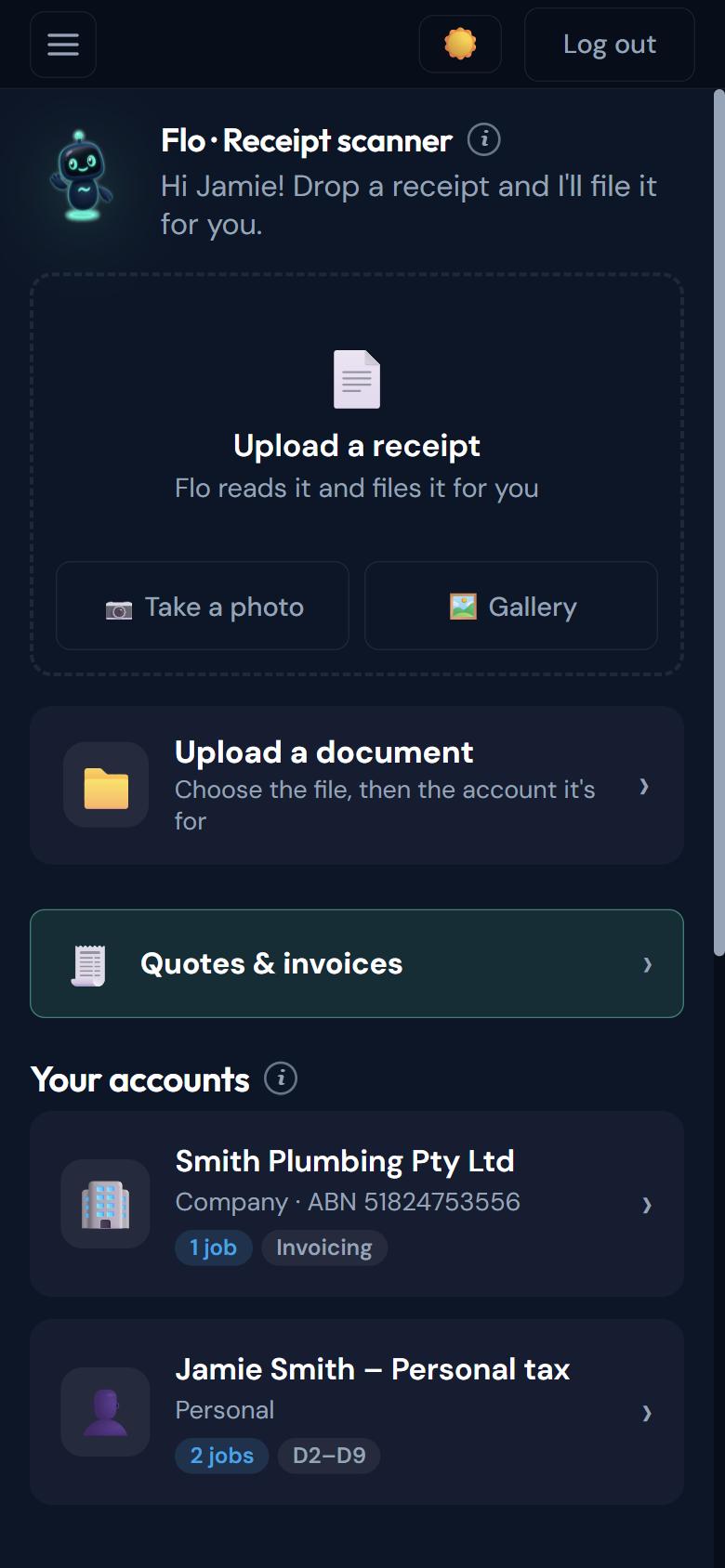
Two taps from your home screen
Upload a document sits right under the receipt scanner. Take a photo of a paper document or pick a file you already have, then pick the account.
Choose the file, choose the account, and it’s with your accountant. Everything is filed by job, so nobody chases email attachments.
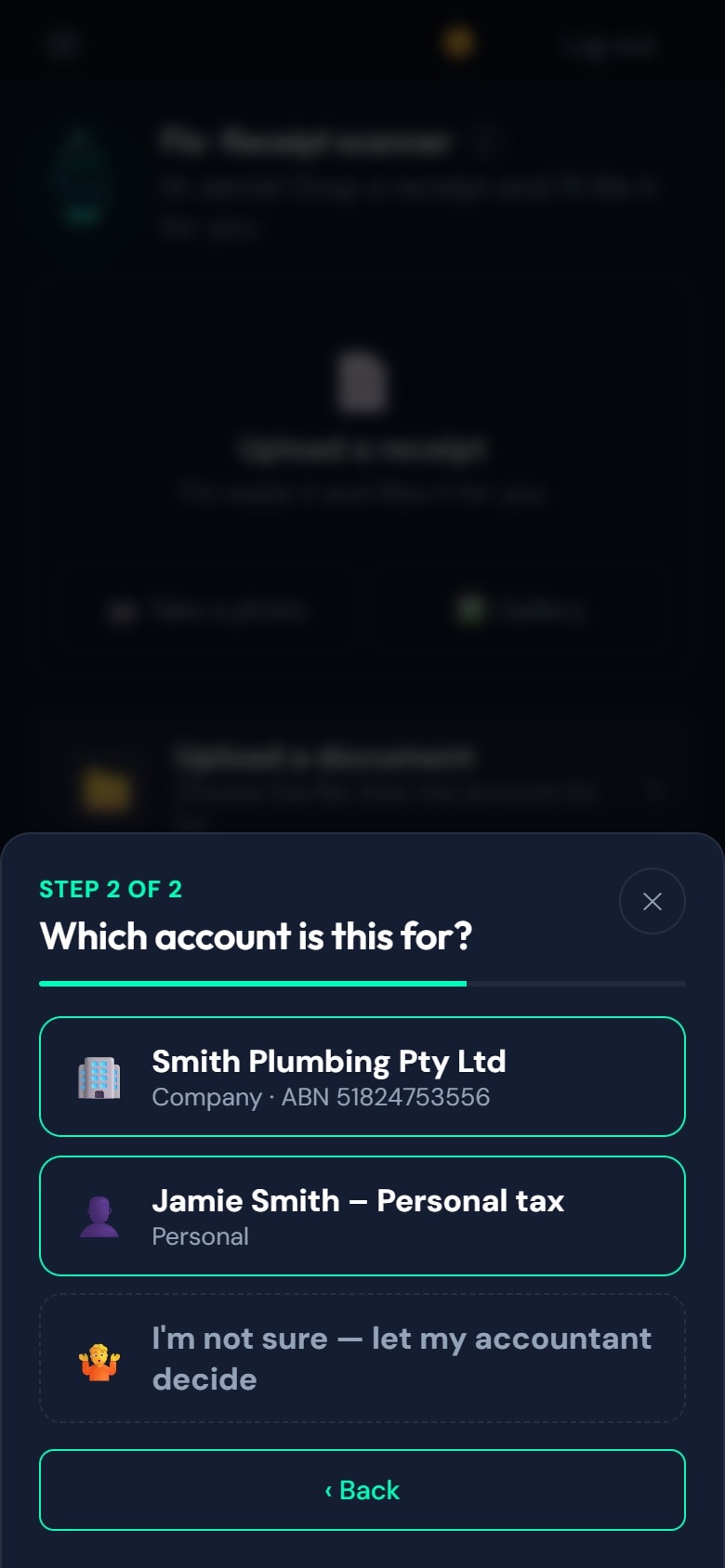
Filed and tidy.

How it works
Take a photo, pick from your photo library or choose a file.
Personal, any business account, or “I’m not sure”.
Into that account’s secure folder, ready for your accountant.
In detail
Upload a document sits right under the receipt scanner. Take a photo of a paper document or pick a file you already have, then pick the account.
Personal, company and trust documents stay in their own folders.
A tax return or a BAS gets its own folder inside the account.
Questions
Always know what's happening. Stay organised. Reach your accountant. Start today — free to get started.
Not ready to sign up? Talk to a human first — free, no obligation.
FREE TO SIGN UP · NO CARD · NO SUBSCRIPTION · YOU APPROVE EVERY QUOTE